CC-Switch
CC-Switch is a desktop tool for switching AI coding tool configurations. Yunxi AI includes a CC Switch import entry on the API key page, so key, service URL, and model configuration can be imported quickly.
Who should use it
- You switch between Claude Code and Codex often.
- You do not want to edit environment variables or config files manually.
- You maintain multiple API keys or providers.
- You want to switch active tool profiles from a tray menu.
Install
Download CC-Switch from its release page:
https://github.com/farion1231/cc-switch/releasesChoose the package for your system:
| System | Suggested package |
|---|---|
| Windows | .exe or installer |
| macOS | .dmg |
| Linux | .deb or AppImage |
Import Yunxi AI configuration
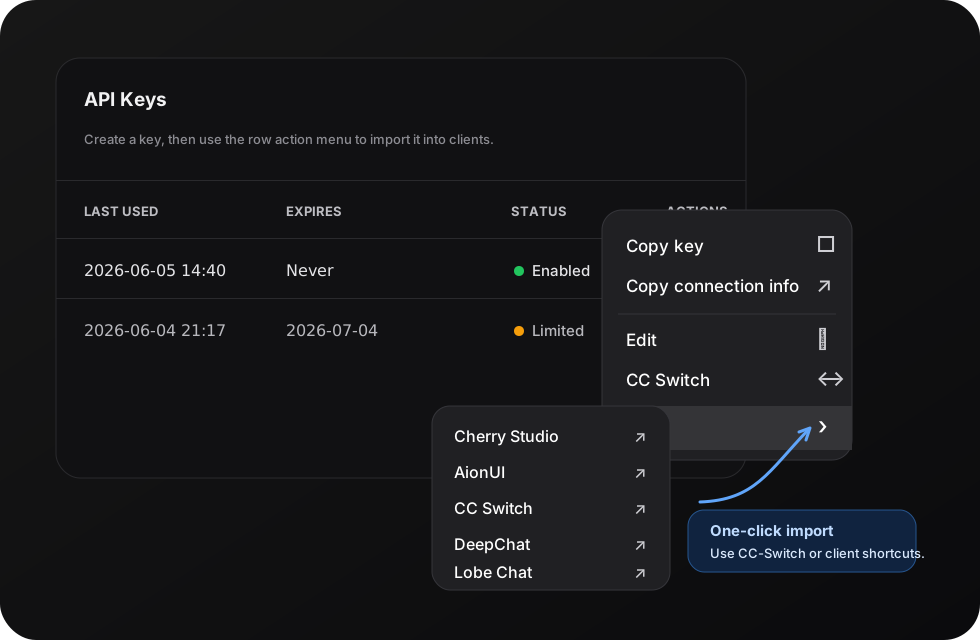
- Open
https://ai.laiber.cloudand sign in. - Go to
API Keys. - Find the key you want to use and open its action menu.
- Choose
CC Switch. - Select app type:
Claude,Codex, orGemini. - Select or enter the primary model.
- Click
Open CC Switchto finish importing.
TIP
Codex imports use /v1. Claude and Gemini imports use the site root. You usually do not need to edit the Base URL manually.
If you only want to open a chat client, use the same key action menu, expand Chat, and choose a preset client such as Cherry Studio, DeepChat, or Lobe Chat.
Manual fallback
Claude Code
Name: Yunxi Claude
Base URL: https://ai.laiber.cloud
API Key: your Claude Code key
Codex
Name: Yunxi Codex
Base URL: https://ai.laiber.cloud/v1
API Key: your Codex key
TIP
Claude Code and Codex use different protocols and configuration formats. Create separate keys and profiles for them.
Activate a profile
- Select the Yunxi AI provider in CC-Switch.
- Click activate.
- Restart the AI tool.
- Send a simple test prompt.
FAQ
It still uses the old configuration
Restart Claude Code or Codex. Some tools only read configuration when they start.