OpenAI-Compatible Clients
Most OpenAI SDKs and compatible clients can connect directly to Yunxi AI.
Faster setup
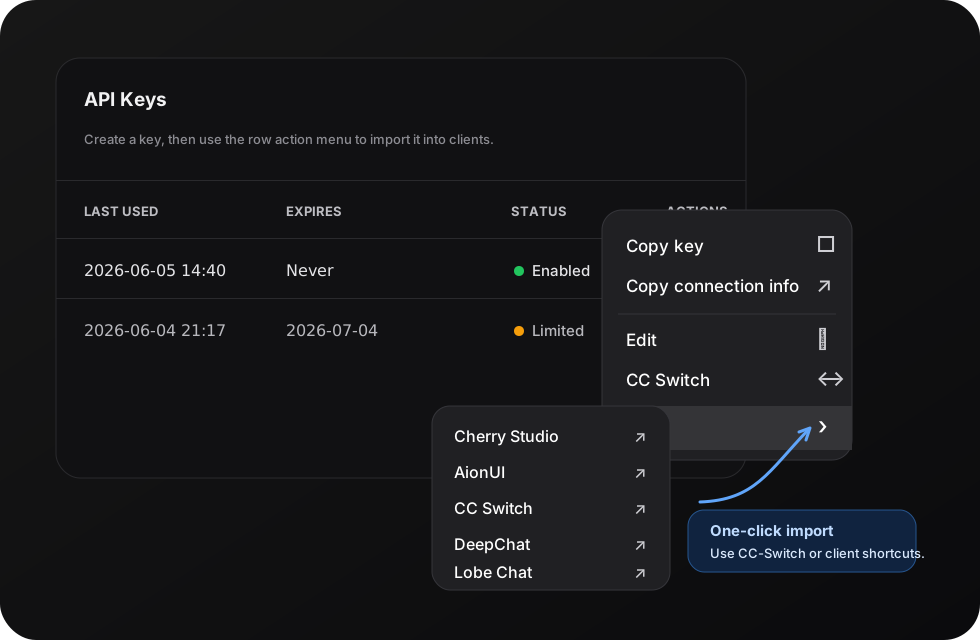
If your client appears in the console's Chat menu, such as Cherry Studio, AionUI, DeepChat, or Lobe Chat, use the key action menu to open it directly instead of copying the key manually.
Basic configuration
text
Base URL: https://ai.laiber.cloud/v1
API Key: your API key
If your client supports importing connection information, use Copy connection info from the key action menu.
curl
bash
curl https://ai.laiber.cloud/v1/chat/completions \
  -H "Authorization: Bearer $LAIBER_API_KEY" \
  -H "Content-Type: application/json" \
  -d '{
    "model": "an-available-model",
    "messages": [
      {
        "role": "user",
        "content": "Explain Yunxi AI in one sentence."
      }
    ]
  }'
Node.js
ts
import OpenAI from "openai";

const client = new OpenAI({
  apiKey: process.env.LAIBER_API_KEY,
  baseURL: "https://ai.laiber.cloud/v1",
});

const response = await client.chat.completions.create({
  model: "an-available-model",
  messages: [{ role: "user", content: "Write a short API test case." }],
});

console.log(response.choices[0]?.message?.content);
Python
python
from openai import OpenAI
import os

client = OpenAI(
    api_key=os.environ["LAIBER_API_KEY"],
    base_url="https://ai.laiber.cloud/v1",
)

response = client.chat.completions.create(
    model="an-available-model",
    messages=[{"role": "user", "content": "Explain what an API gateway is."}],
)

print(response.choices[0].message.content)