Create a Dedicated API Key
An API key is the credential used by your tools and applications. Claude Code, Codex, Cherry Studio, and other clients all need a key to authenticate.
Steps
- Sign in to
https://ai.laiber.cloud. - Open the
API Keyspage. - Click create key.
- Give it a clear name, such as
claude-code,codex, orcherry-studio. - Configure group, model restrictions, quota, and expiration if needed.
- Save and copy the full key.
WARNING
The full key may only be shown once. Store it safely and never paste it into public chats, screenshots, frontend code, or Git repositories.
Quick client import
After creating a key, open the action menu on the key row:
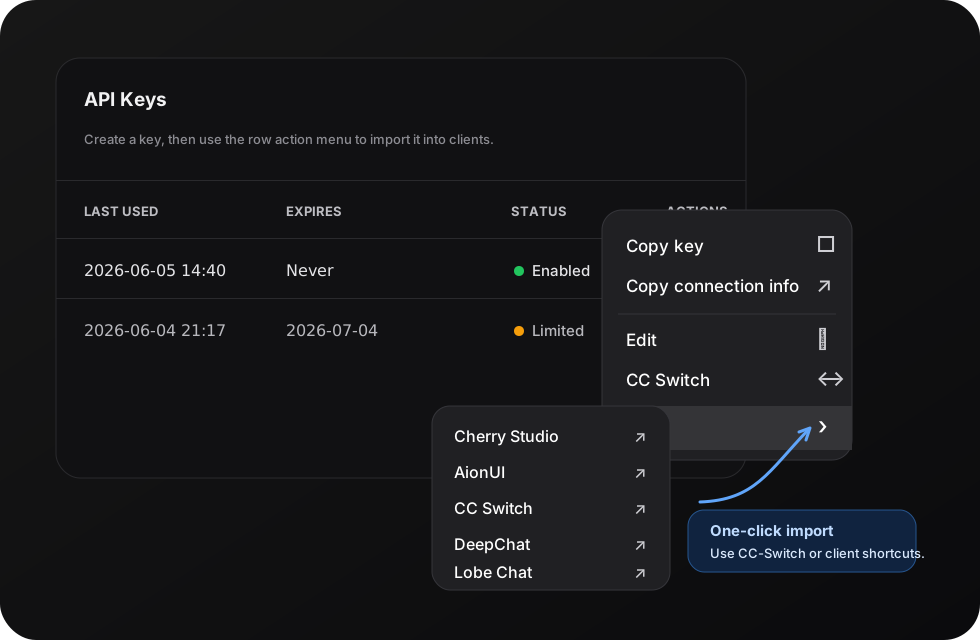
| Action | Description |
|---|---|
Copy key | Copy the full key for manual setup |
Copy connection info | Copy a JSON payload containing the key and service URL |
CC Switch | Import a Claude, Codex, or Gemini profile into CC-Switch |
Chat | Open preset clients such as Cherry Studio, AionUI, DeepChat, or Lobe Chat |
When importing into CC-Switch, choose the app type and primary model. The model list comes from your account's available models, and you can also enter a model manually.
For chat clients such as Cherry Studio, DeepChat, and Lobe Chat, open the Chat submenu and choose the preset client. The console passes the service URL and current key into the client import flow.
Choosing a group
| Use case | Recommendation |
|---|---|
| Claude Code | Use a group that supports the Claude or Anthropic protocol |
| Codex | Use a group that supports OpenAI Responses or Codex-compatible routing |
| Cherry Studio | Use an OpenAI-compatible group |
| General API calls | Choose an available model and group based on cost and capability |
If you are unsure, start with a normal OpenAI-compatible key and test it first.
Test the key
curl https://ai.laiber.cloud/v1/models \
  -H "Authorization: Bearer YOUR_API_KEY"
If it returns a model list, the key and base connection are working.